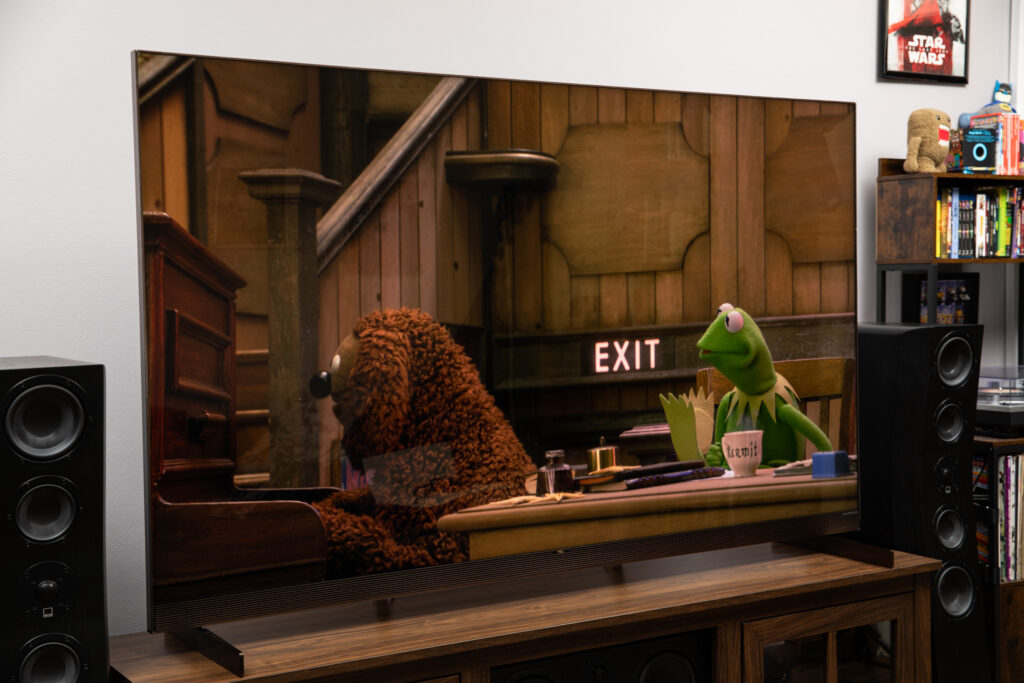
If a new TV makes movies look too blue or unusually smooth, start with the picture preset rather than adjusting individual controls. Many TVs default to Eco or Energy Saving to meet energy-use requirements. That preset can give the picture a cool cast and apply processing that makes fine details look exaggerated or motion look unnatural.
Choose Filmmaker, Movie, Cinema or Professional, depending on the brand. The picture may initially look reddish next to the Eco preset, but the warmer color temperature is more accurate. These modes also reduce or disable extra processing. Avoid Vivid and Dynamic if accuracy is the goal: both push brightness up and give the image a strong blue cast.
Set brightness for the room
If the picture keeps getting brighter or dimmer while you watch, check the ambient light sensor before moving the brightness slider. The sensor adjusts brightness and color temperature in response to room light. If those changes are distracting, switch it off. Look under General in a power-saving menu, not just under Picture. Possible names include Brightness Optimization, Ambient Light Detection, Intelligent Mode and Energy Saving Step.
Then adjust Brightness or Backlight. Use whichever slider changes the light output across the whole screen. A higher setting can help in a sunlit room; after sunset, turn it down if the same picture feels too intense.
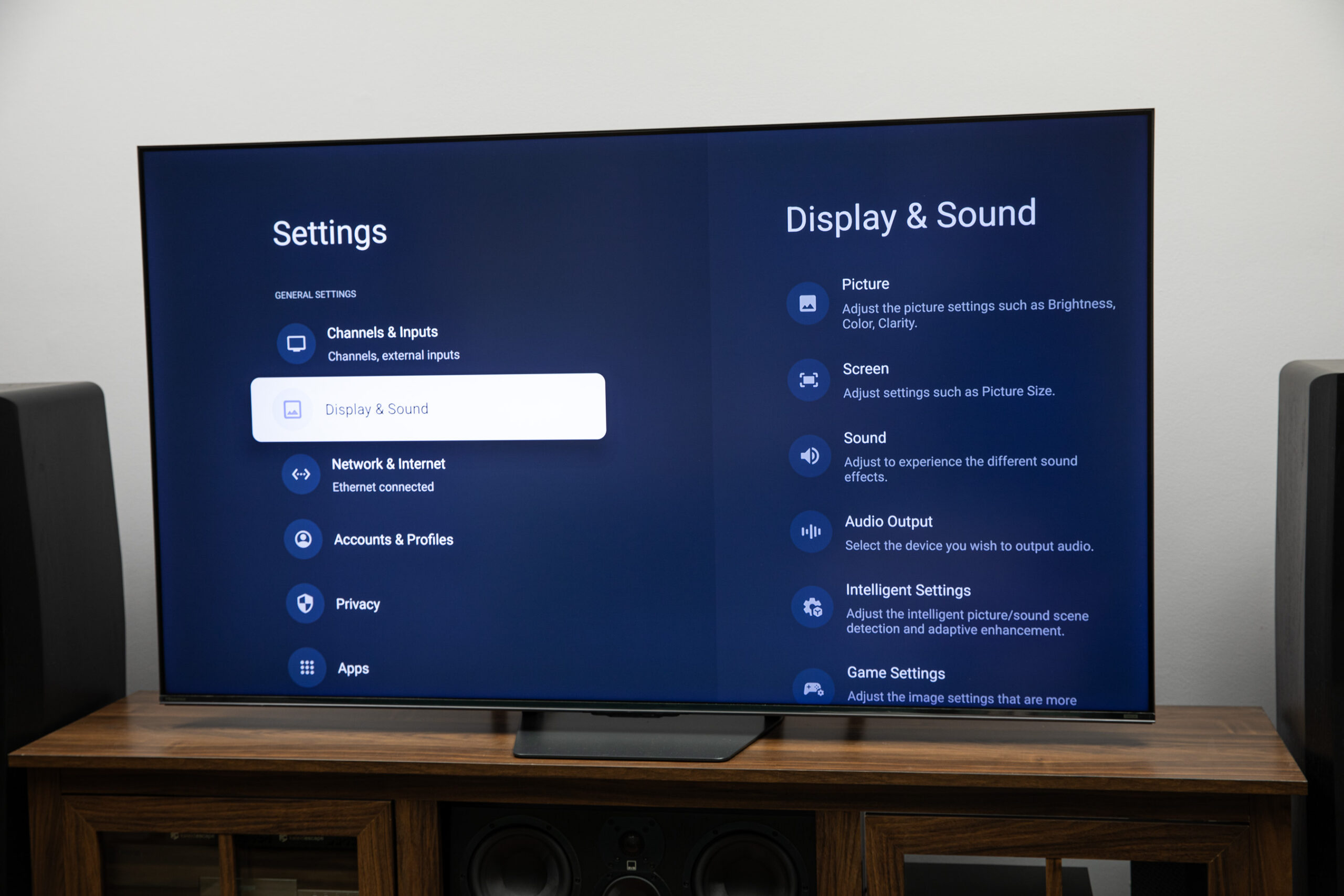
Check motion smoothing for movies and sports
Motion smoothing creates extra frames between existing ones. That can give a film the fluid look of a daytime drama, often called the “soap opera effect.” Filmmaker mode generally switches smoothing off, but check the motion setting if films still look that way. For fast-moving sports, a low level of smoothing can work well on some TVs, such as Sony models with Motionflow set to its lowest level.
Check two settings for a game console
Select Gaming mode to reduce the delay between a controller input and the action on screen. It cuts back on picture processing and makes high-refresh-rate modes available on TVs that support them. If the colors look too cool in Gaming mode, choose a color temperature labeled Warm.
For a console or another HDMI device, check the setting for the port it uses. Select Enhanced instead of Standard to use the port’s full bandwidth. This control is often under General, in a menu called HDMI Signal Format or External Device Manager.