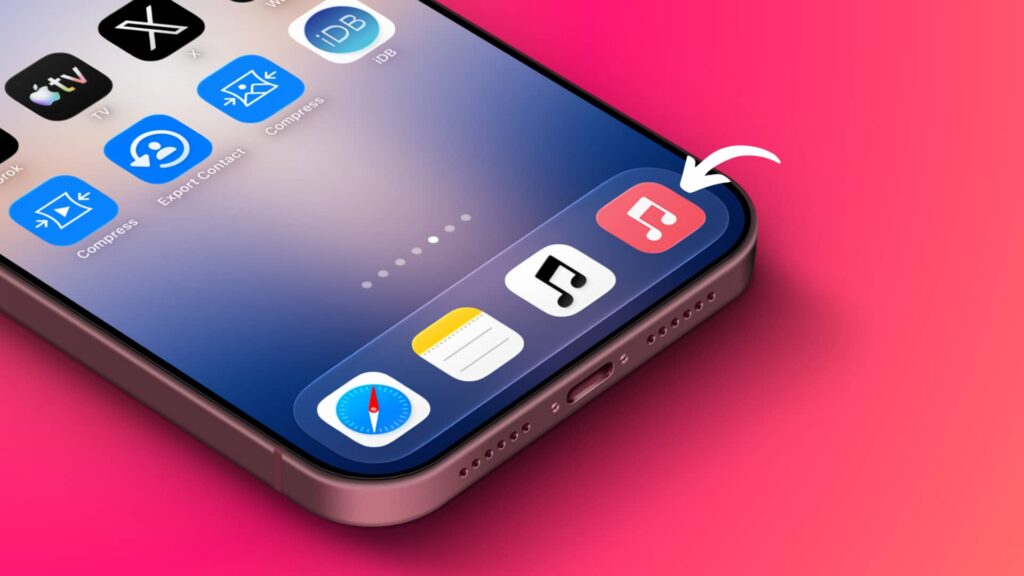
A guide published on November 2, 2026, describes how to put a red Music icon on an iPhone or iPad Home Screen after iOS 27 and iPadOS 27 replaced it with a black-and-white icon. Apple Music does not offer a setting to choose the older icon, but you can create a Home Screen shortcut that opens the app.
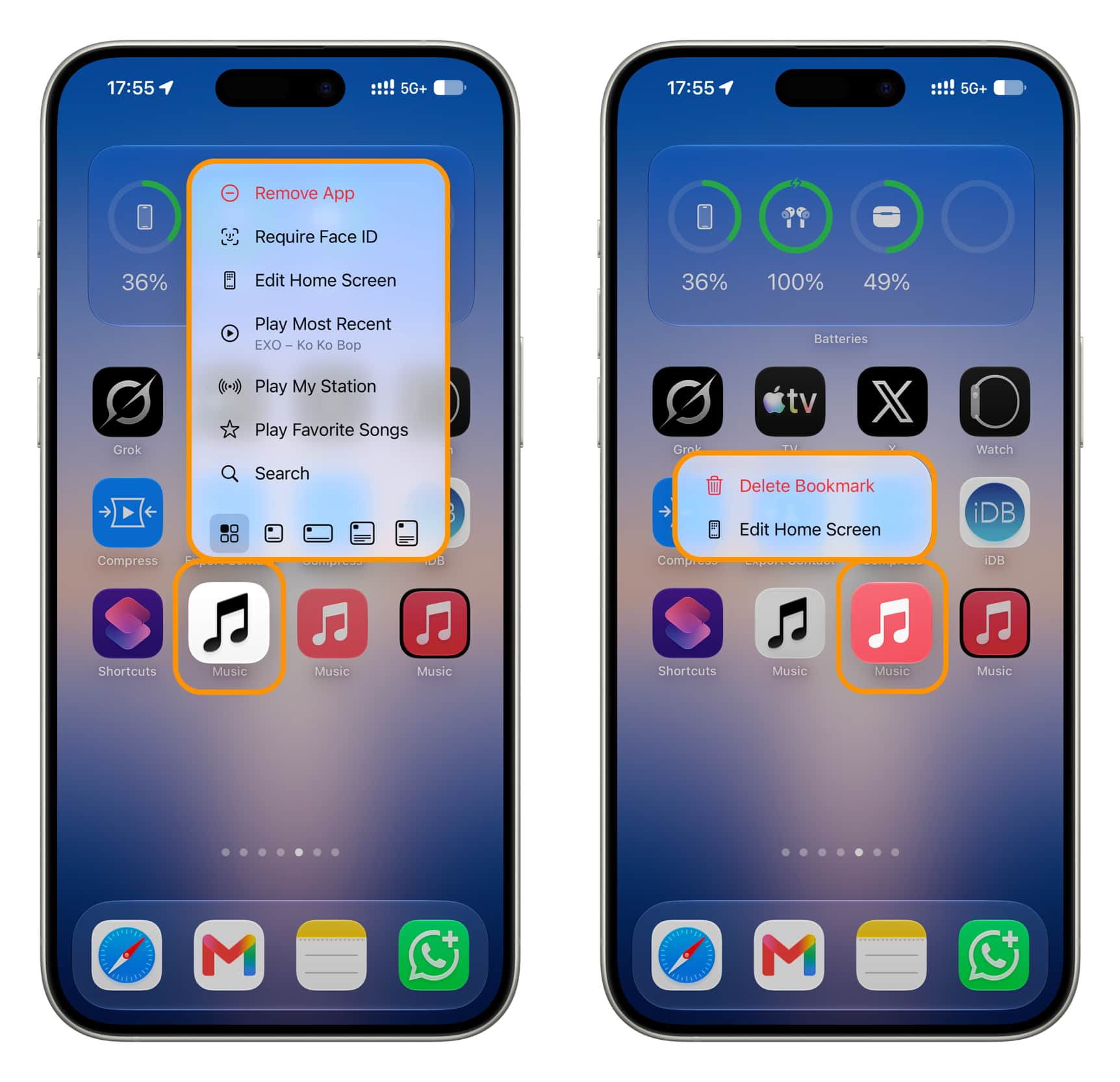
The trade-off: The shortcut does not have the Music app’s touch-and-hold quick actions. The app’s original icon will still appear in the App Library, and you may see two Music icons in its alphabetical view. This method is for iOS and iPadOS, not macOS or tvOS.
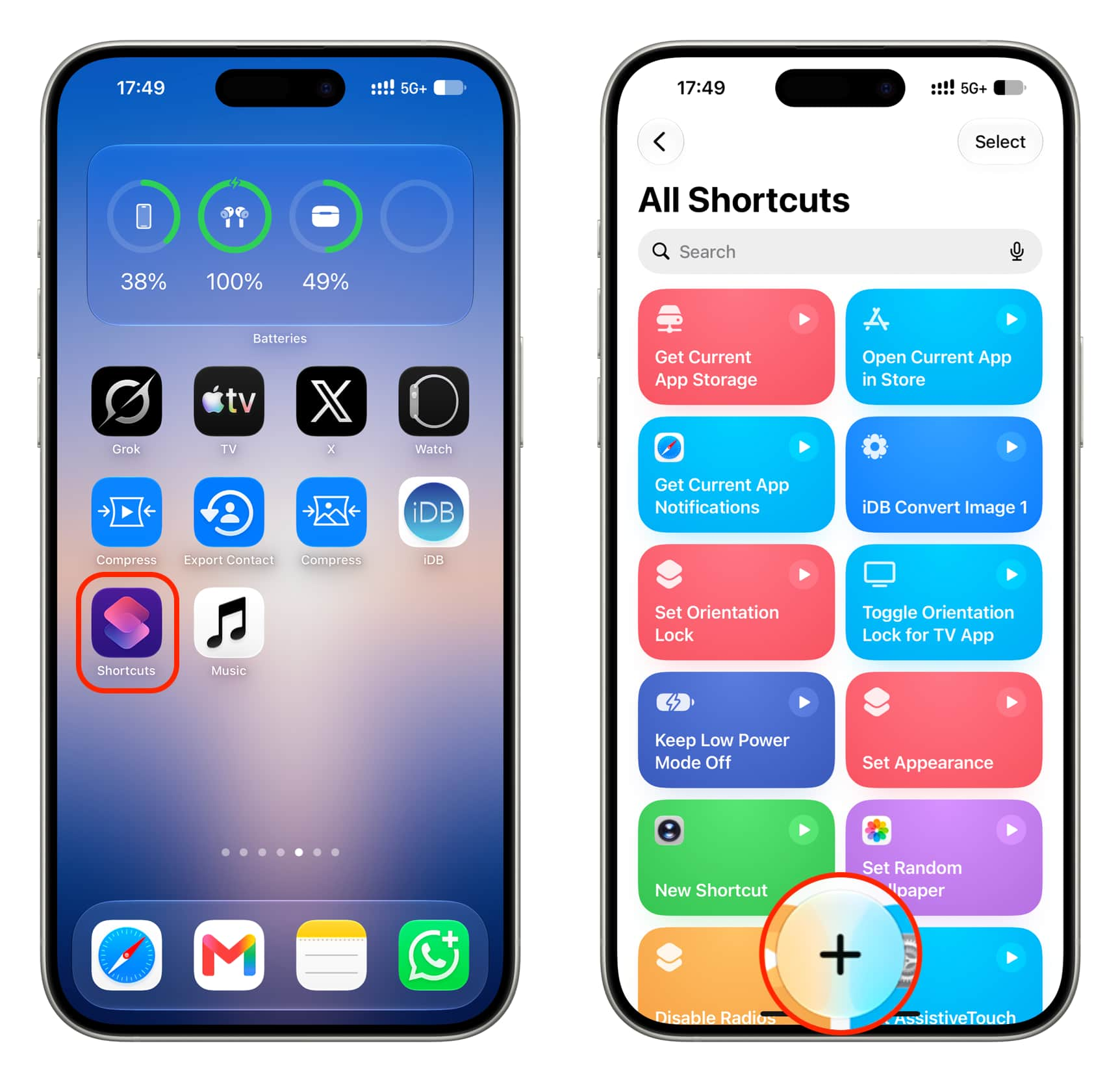
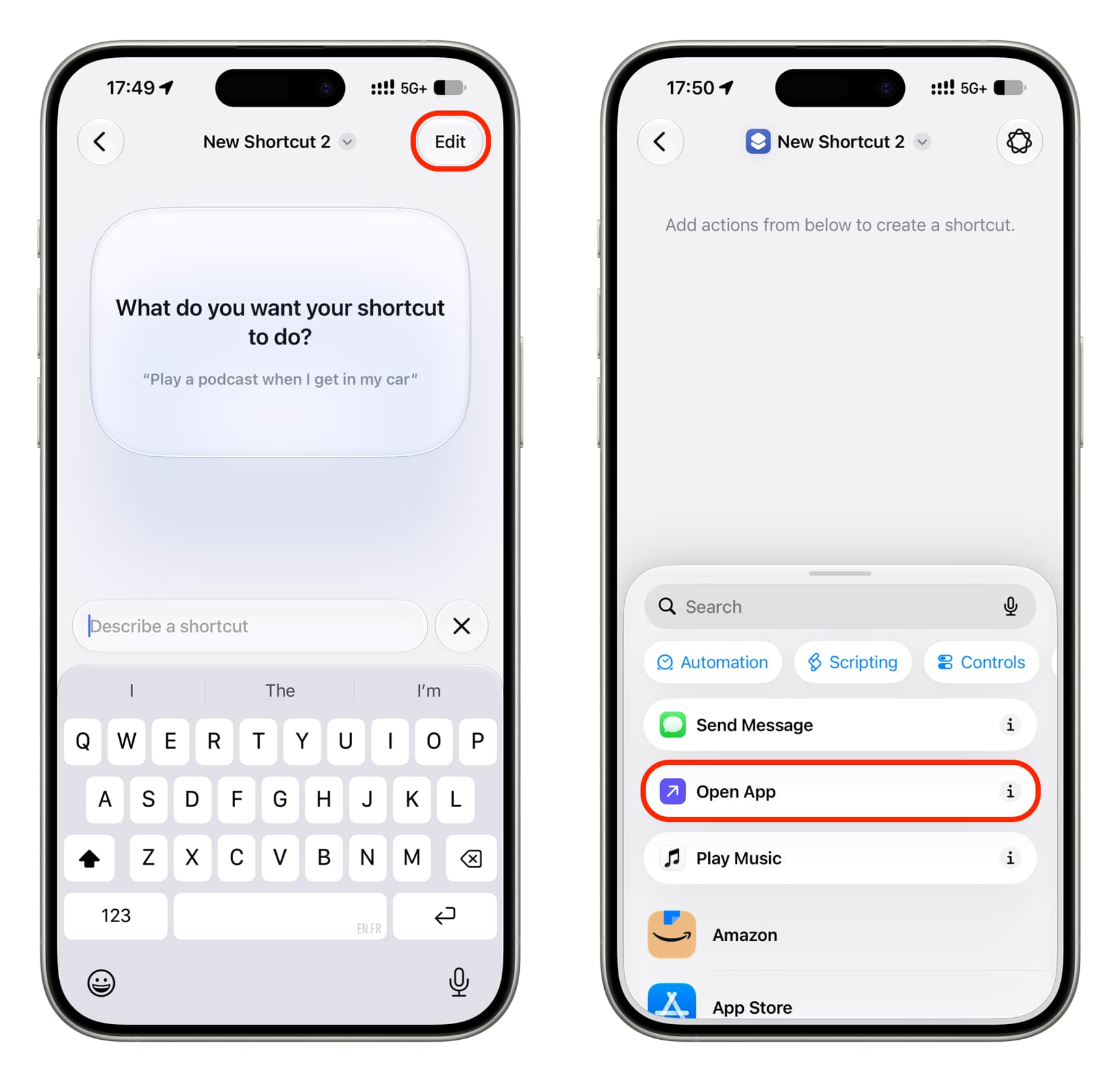
- Open Shortcuts, tap + to create a shortcut, then tap Edit to bypass the AI shortcut-building feature.
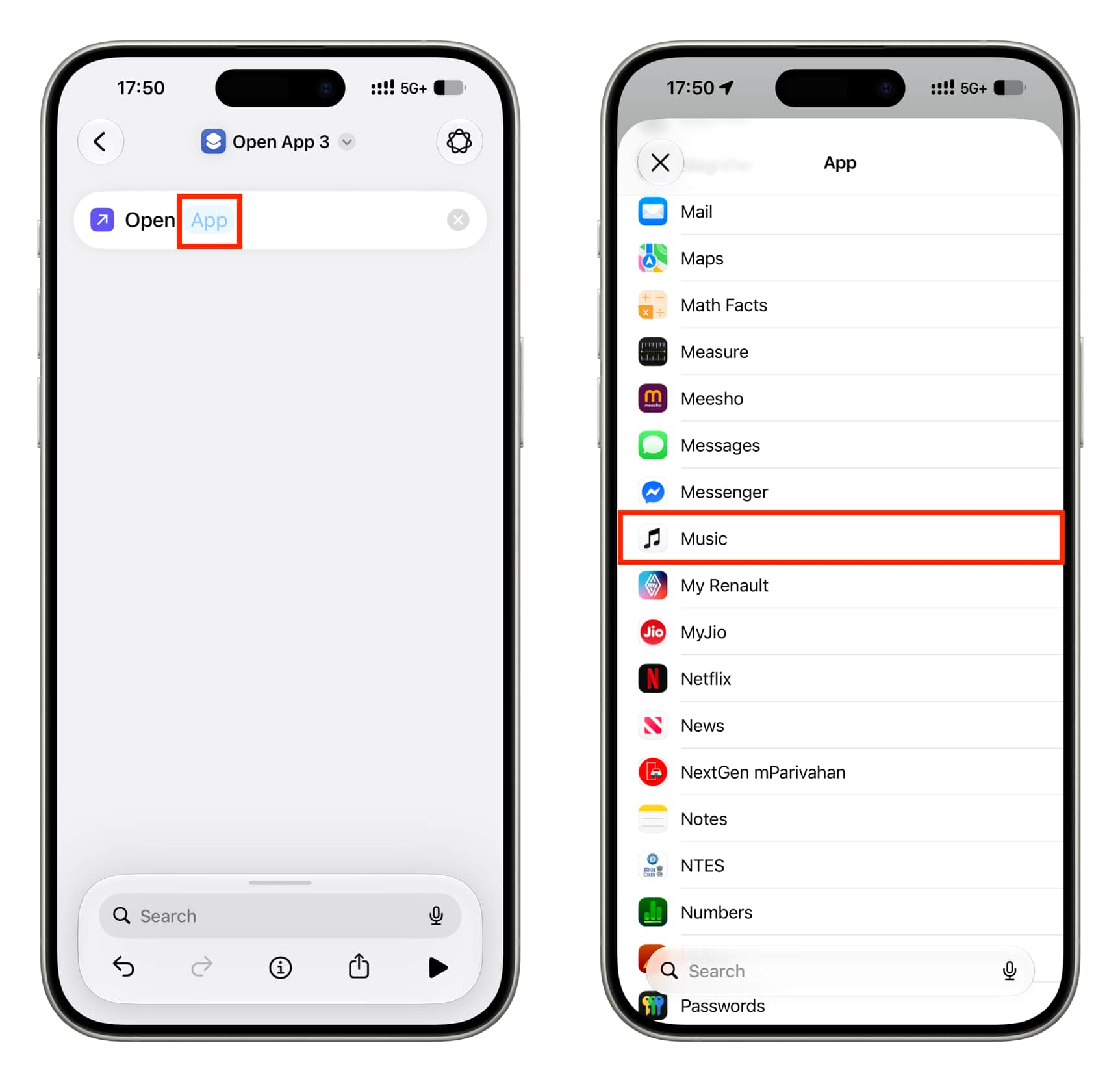
- Tap Open App, tap the blue App placeholder and select Music.
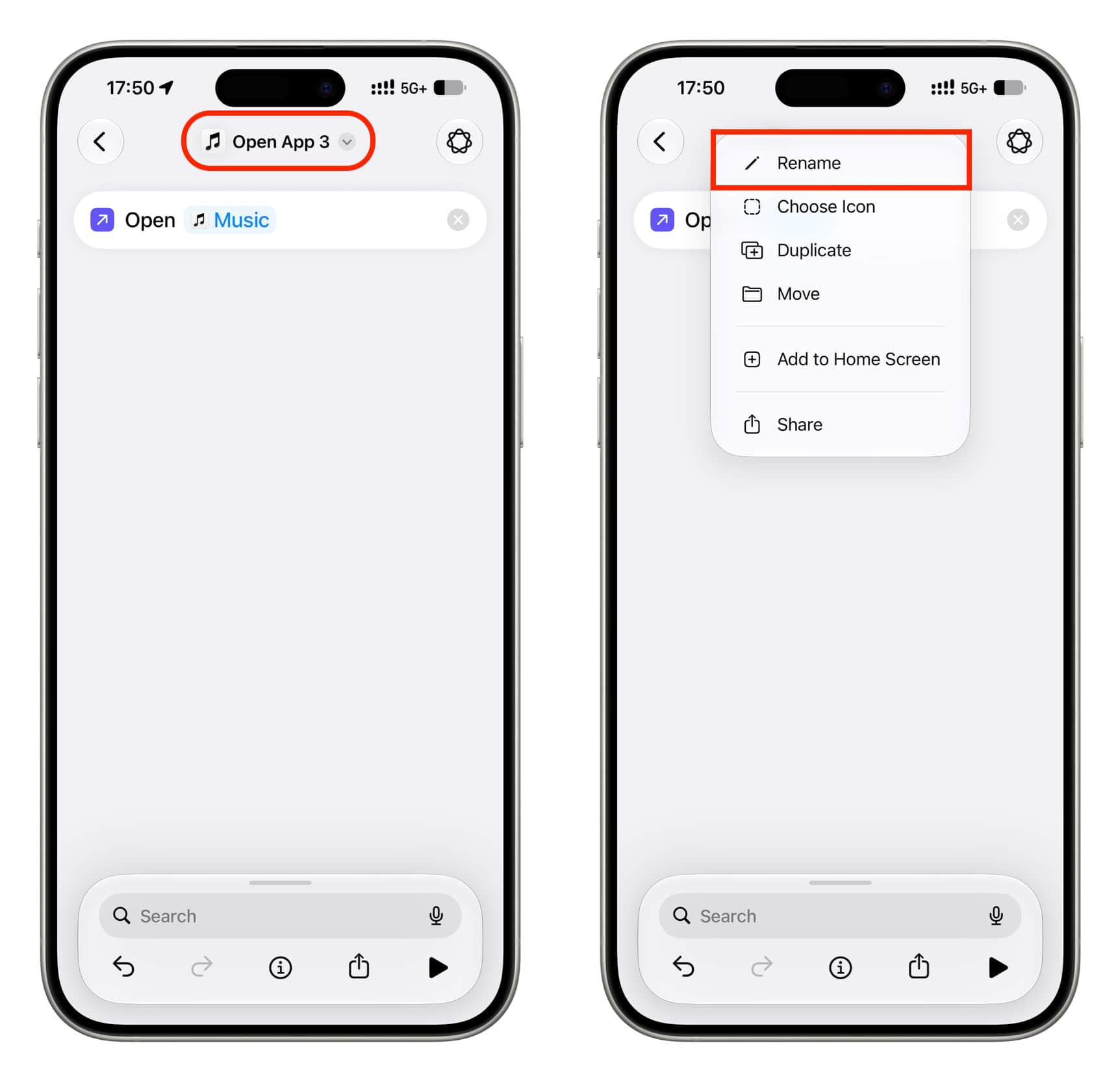
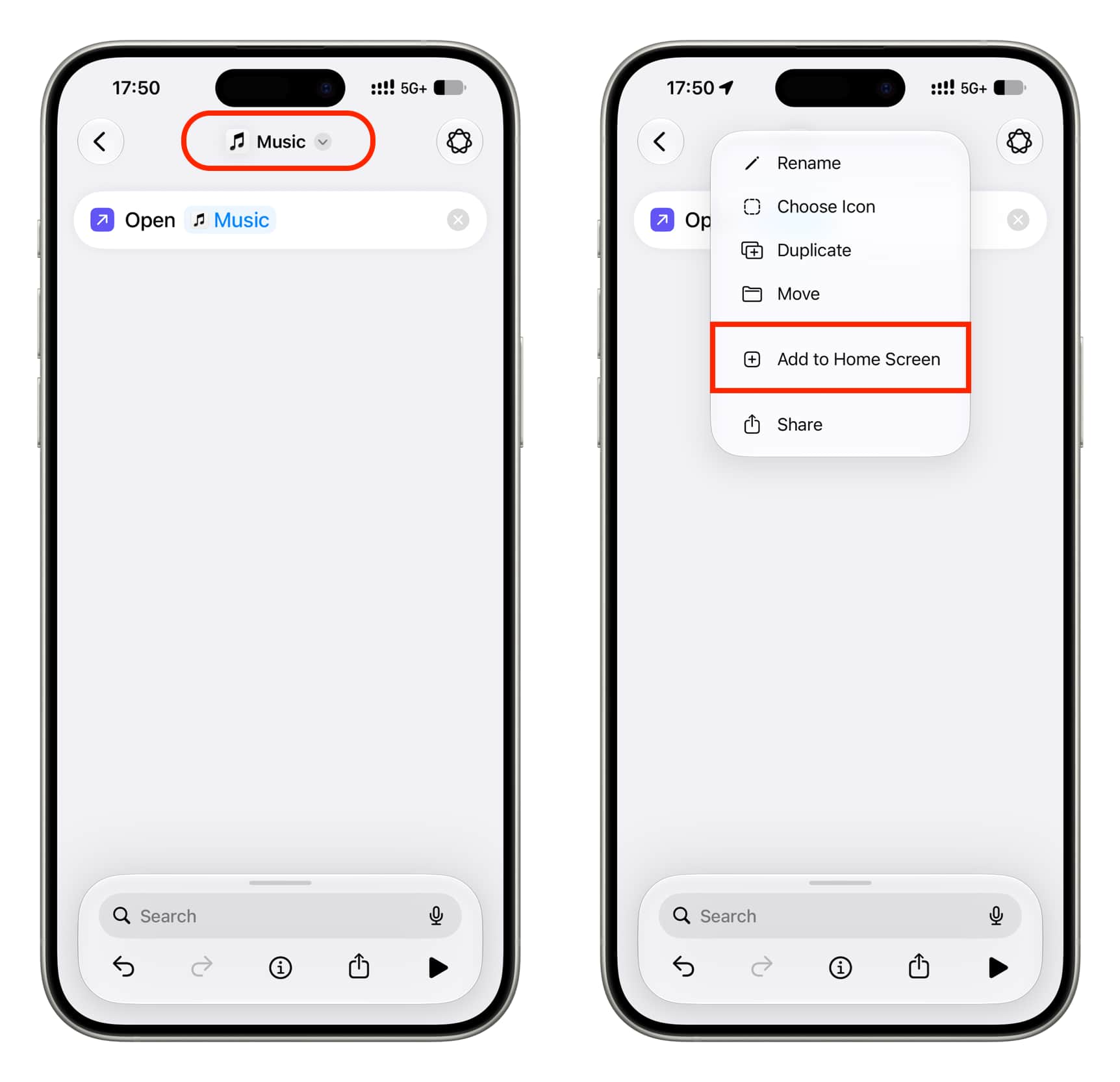
- Tap the shortcut name at the top and rename it Music. Tap the name again and select Add to Home Screen.
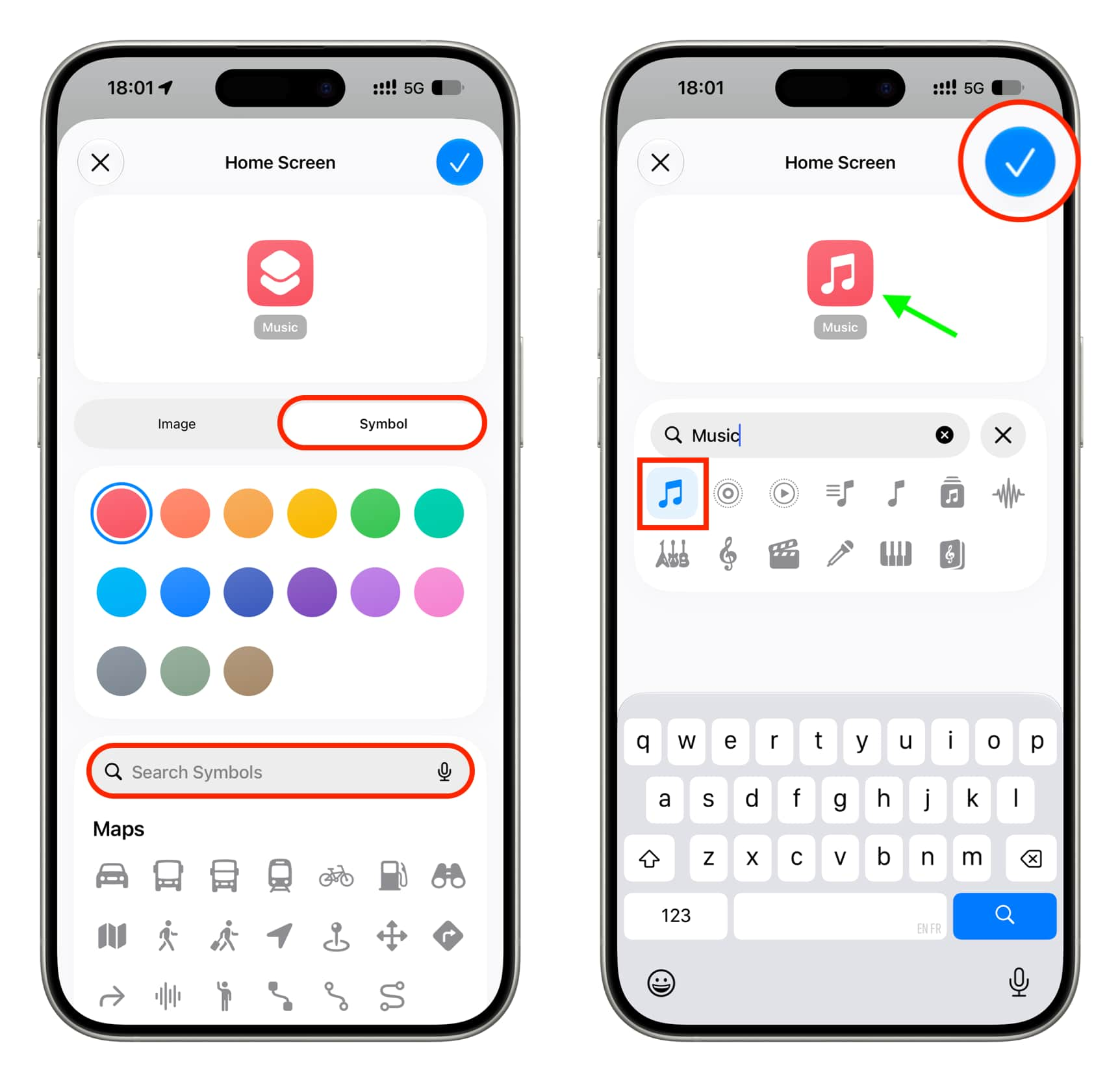
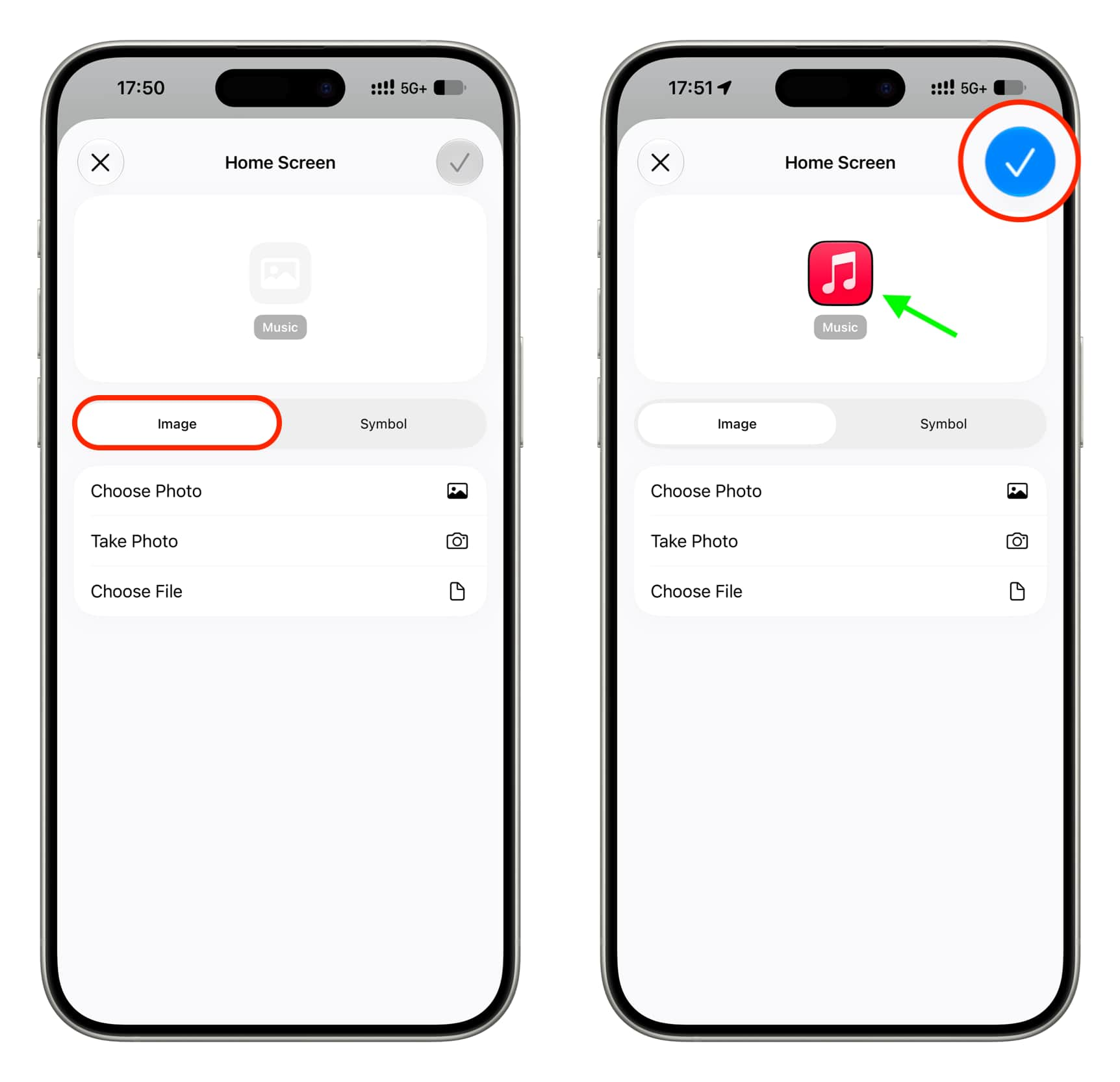
- To make a similar-looking icon, stay in the Symbol tab, choose red, search for the music symbol and select it. Alternatively, in the Image tab, choose a saved image of the original red Music icon from Photos or Files and adjust the crop. The guide notes that a transparent PNG may produce a thin black outline.
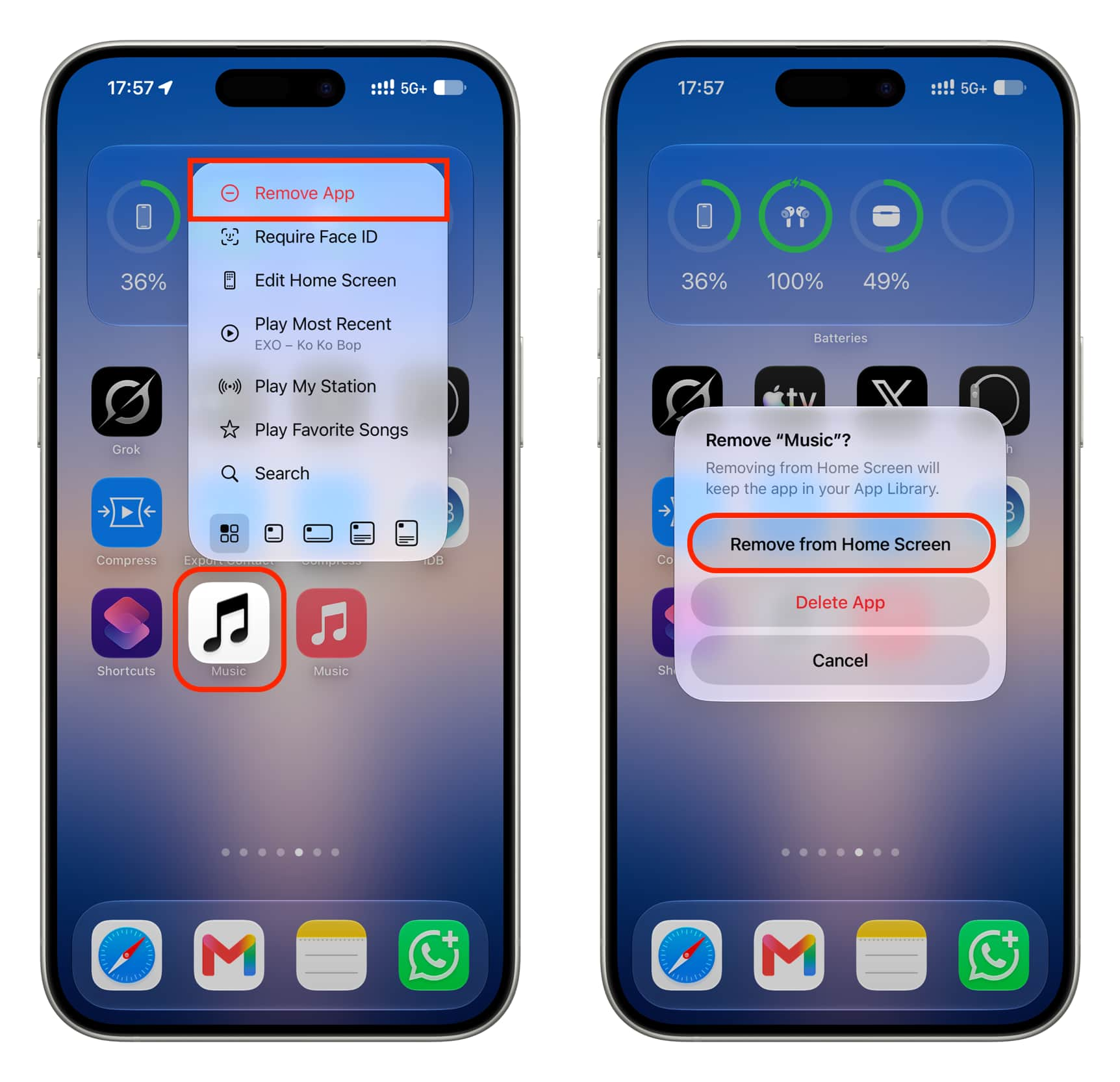
- Tap the checkmark to add the shortcut to your Home Screen. You can then remove the black-and-white Music icon from the Home Screen to avoid confusion; the app remains available.
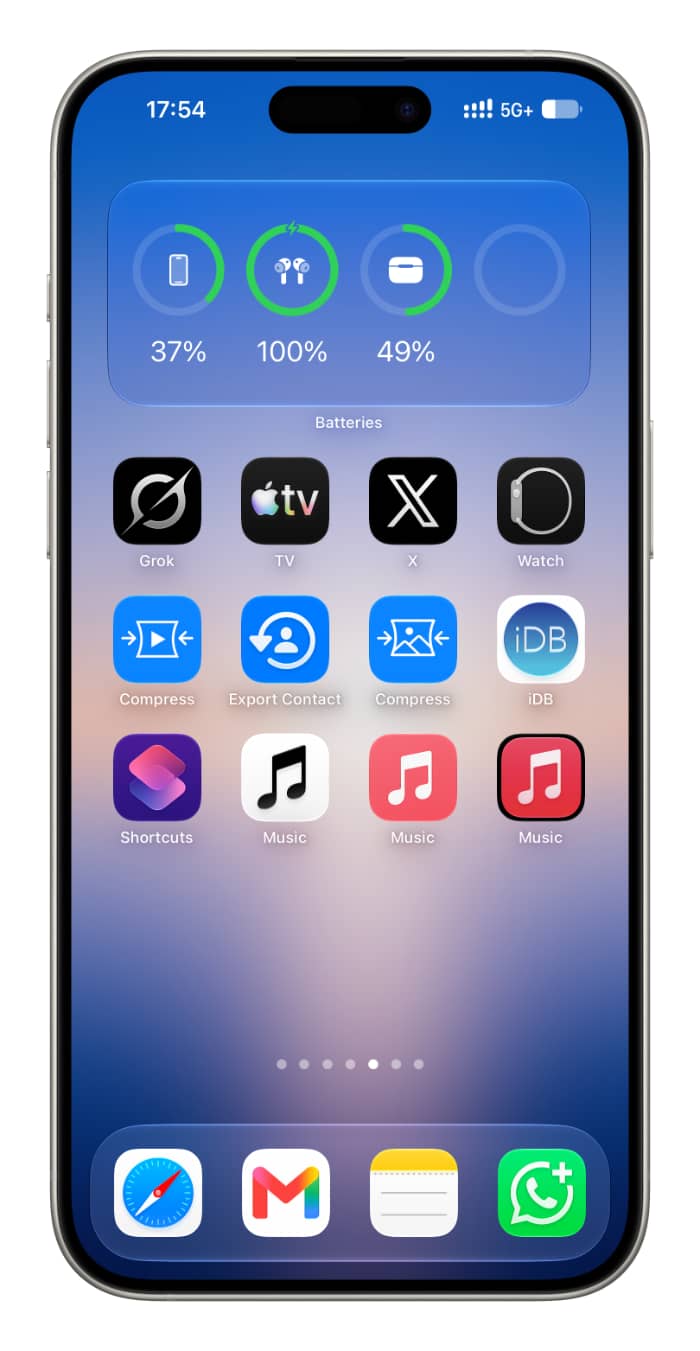
Tap the new red shortcut to open Music.