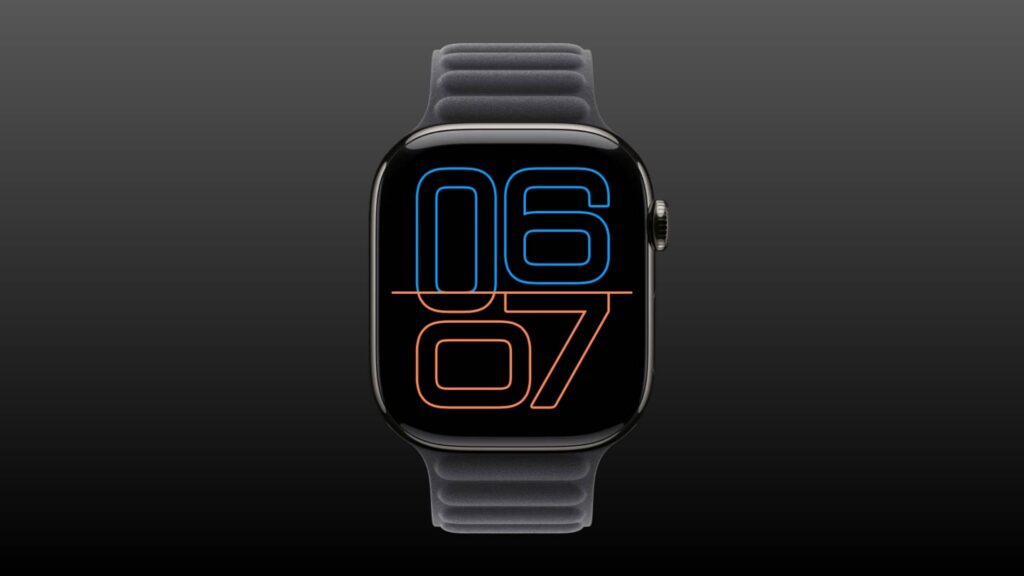
In a guide published on November 10, 2026 (UTC+8), iDownloadBlog explained how to switch off the Apple Watch’s Always On display or limit what appears when your wrist is down. The guide says switching it off can extend battery life, but provides no measured savings.
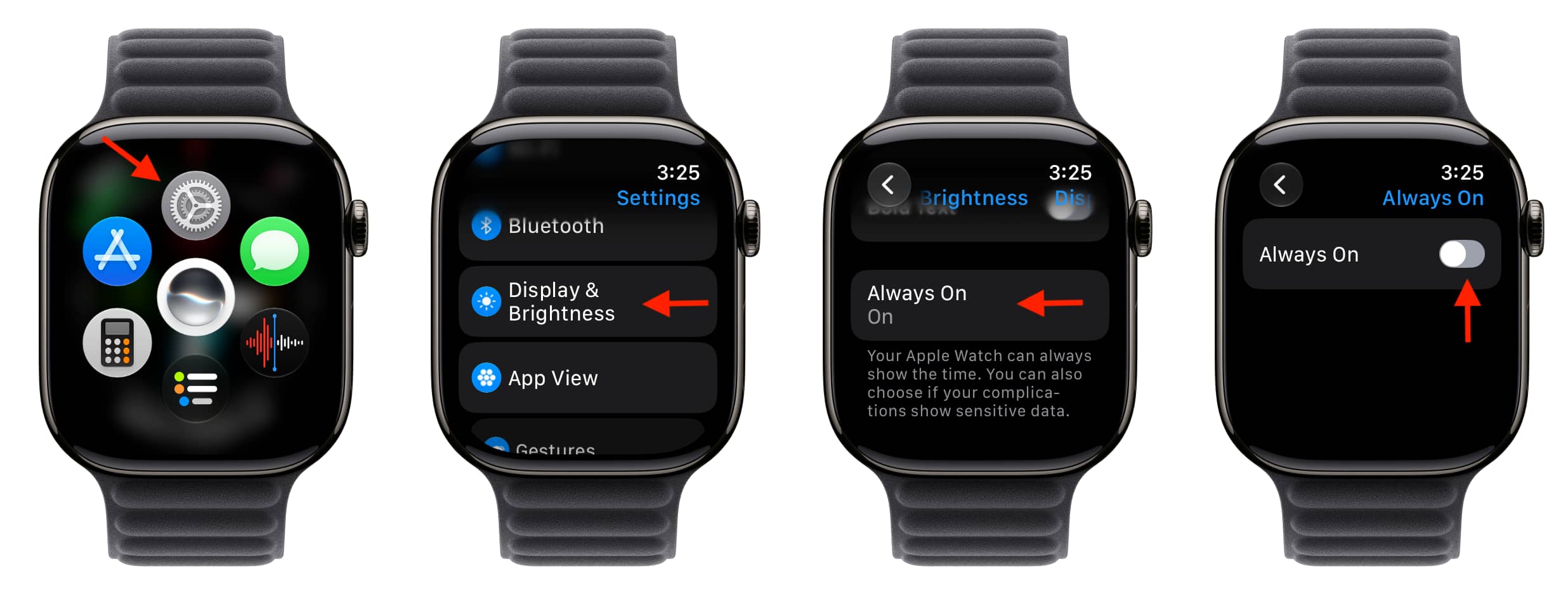
Turn off Always On
On the watch, open Settings → Display & Brightness → Always On, then switch Always On off. The screen will go black when you lower your wrist. You can turn the feature back on through the same setting.
For a temporary change, the guide suggests enabling Low Power Mode or Theater Mode instead.
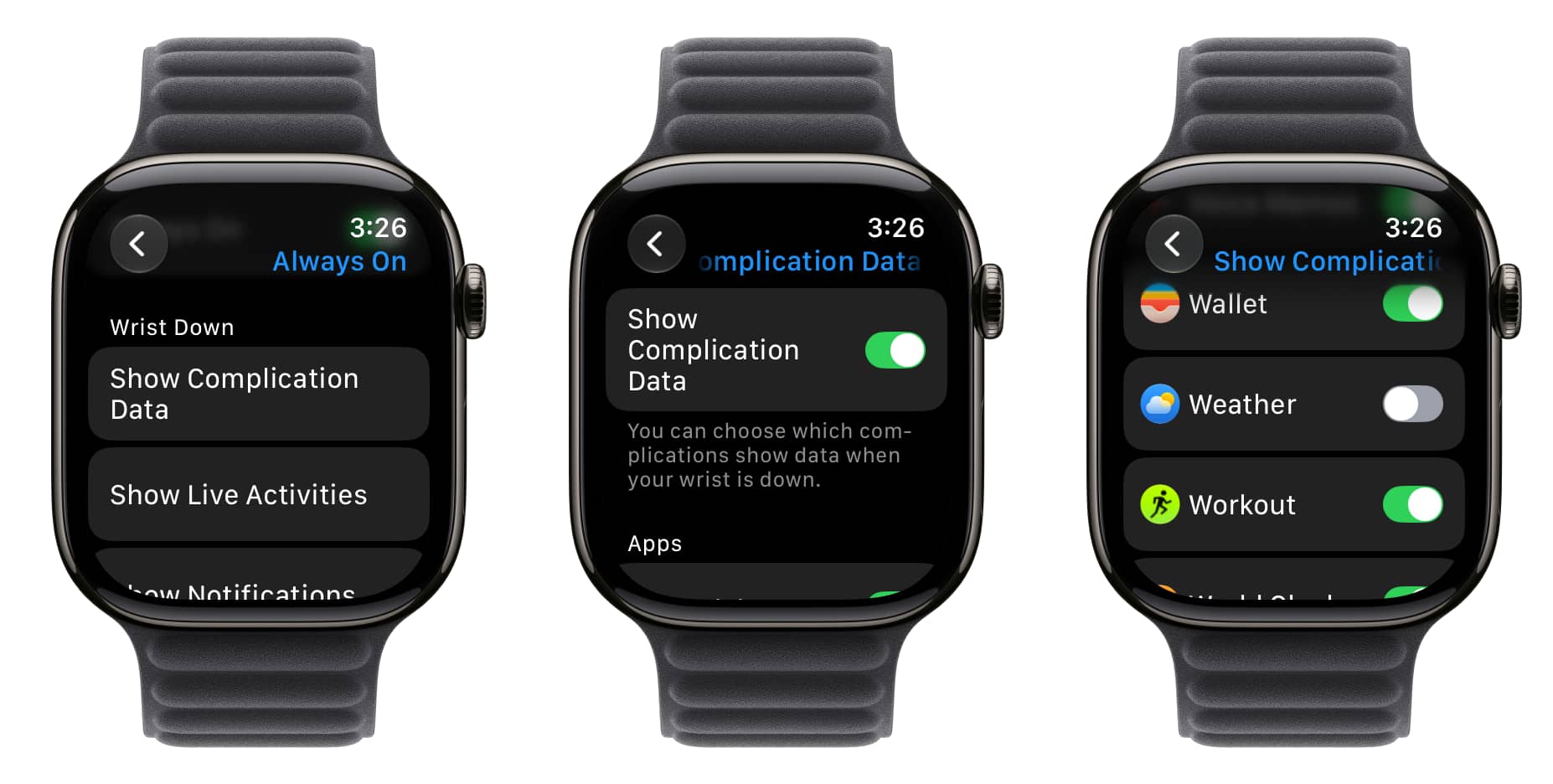
Choose what remains visible
If you want to keep Always On enabled, go to Settings → Display & Brightness → Always On. Under Wrist Down, you can manage Show Complication Data, Live Activities, Notifications and Apps. Each category has a main switch, and you can also adjust individual apps.
For example, turning off Weather under complication data leaves its complication on the watch face but replaces the temperature with a dash while your wrist is down. The temperature appears again when the watch face wakes. Turning off WhatsApp under notifications prevents its notification content from appearing on the Always On screen while your wrist is down; notifications remain visible when the watch face is fully awake.
These controls may also help keep a running voice recording, timer or other activity from being visible on your lowered wrist. According to the guide, Apple says the time and complications on the Always On display generally update once a minute. Some items on newer models, such as a second hand or stopwatch, can update once a second.